Discord
The Discord integration lets Helios agents interact with Discord to read/send messages, manage channels, automate community interactions and much more.
What your agents can do
Helios agents don't work from a preset list of actions. They semantically search the entire Discord API and call any endpoint directly, with authentication handled server-side. Anything your Discord bot has permission to do, an agent can do on your behalf.
- Post a message or rich embed to a channel
- Read recent messages from a channel and summarize them
- Create and manage channels, threads, and roles
- Add reactions, mention users, and pin messages
- Look up server members and their roles
- Manage the server on behalf of your bot
Authentication
| Method | Type | Description |
|---|---|---|
| BYO Discord Bot | Bot Token | Your own Discord bot, with full control over its permission set and branding |
Helios bot is not supported for Discord due to permissions limitations.
BYO Discord Bot
Create your own Discord bot application for interacting with Discord through Helios. You supply the client ID, client secret, and bot token.
Setup Steps
Go to Discord Developer Portal.
Click New Application and give it a name.
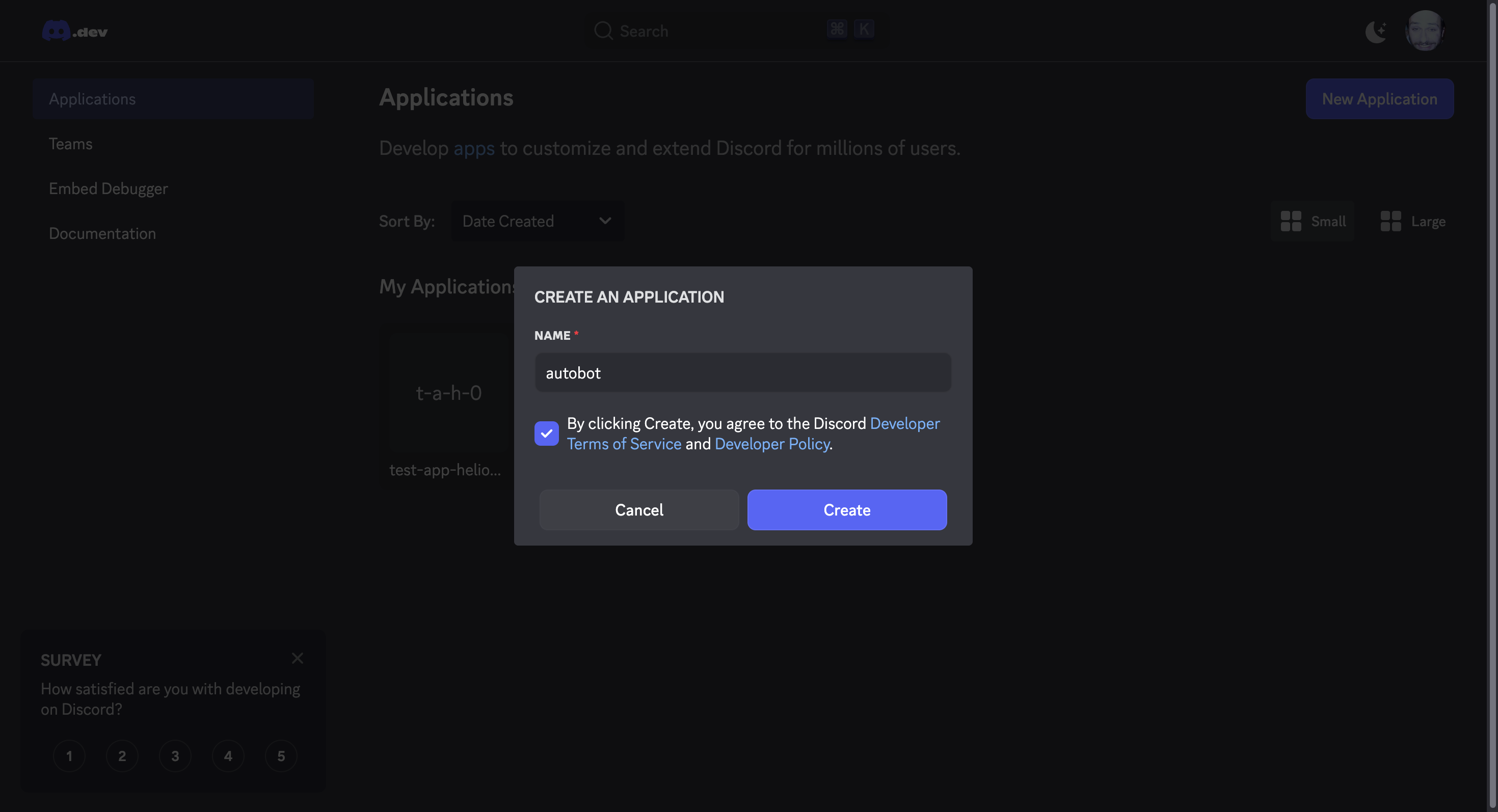
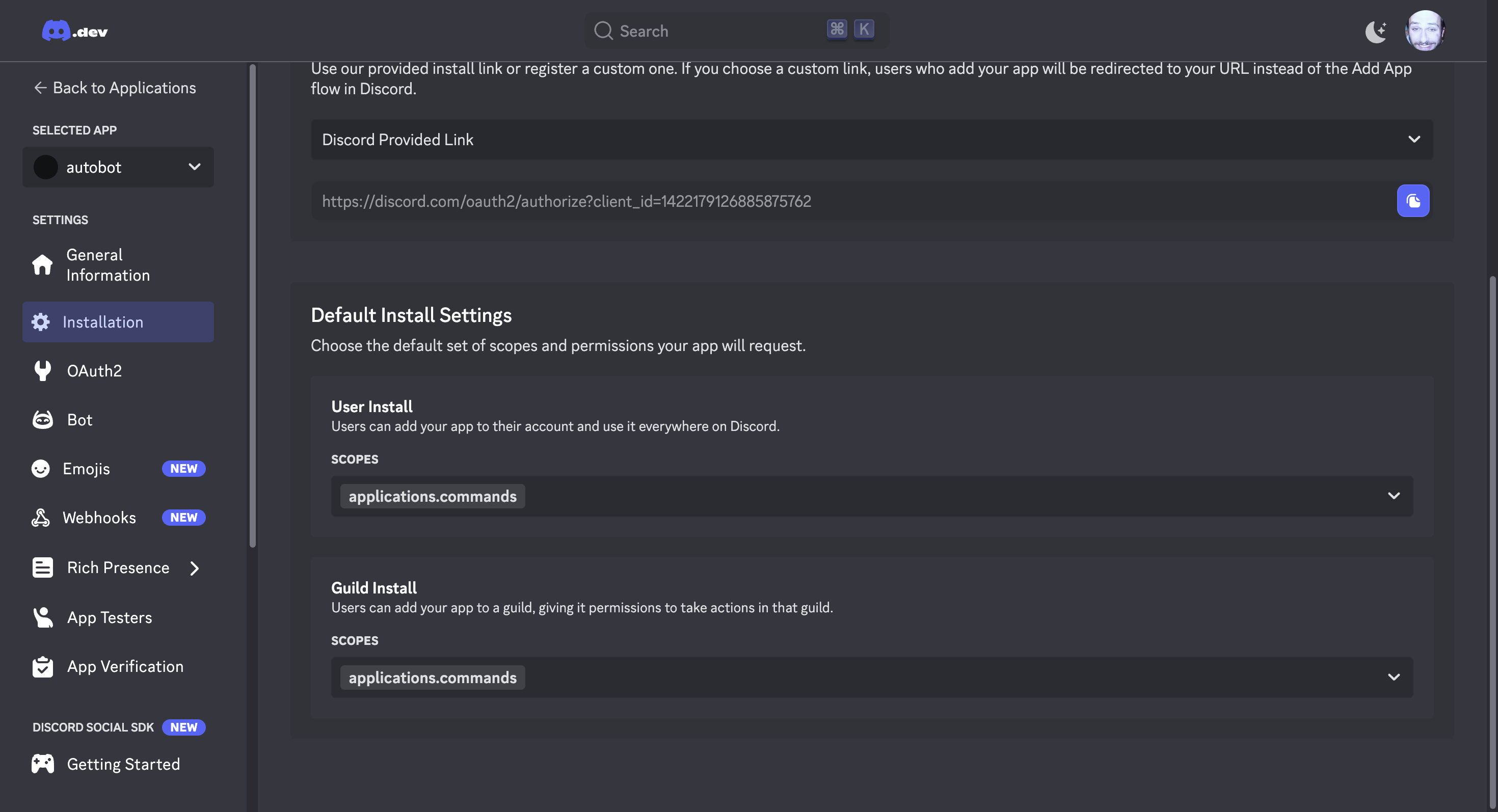
Navigate to the 'Installation' section and
scroll to the bottom of the page to the 'Default Install Settings'.
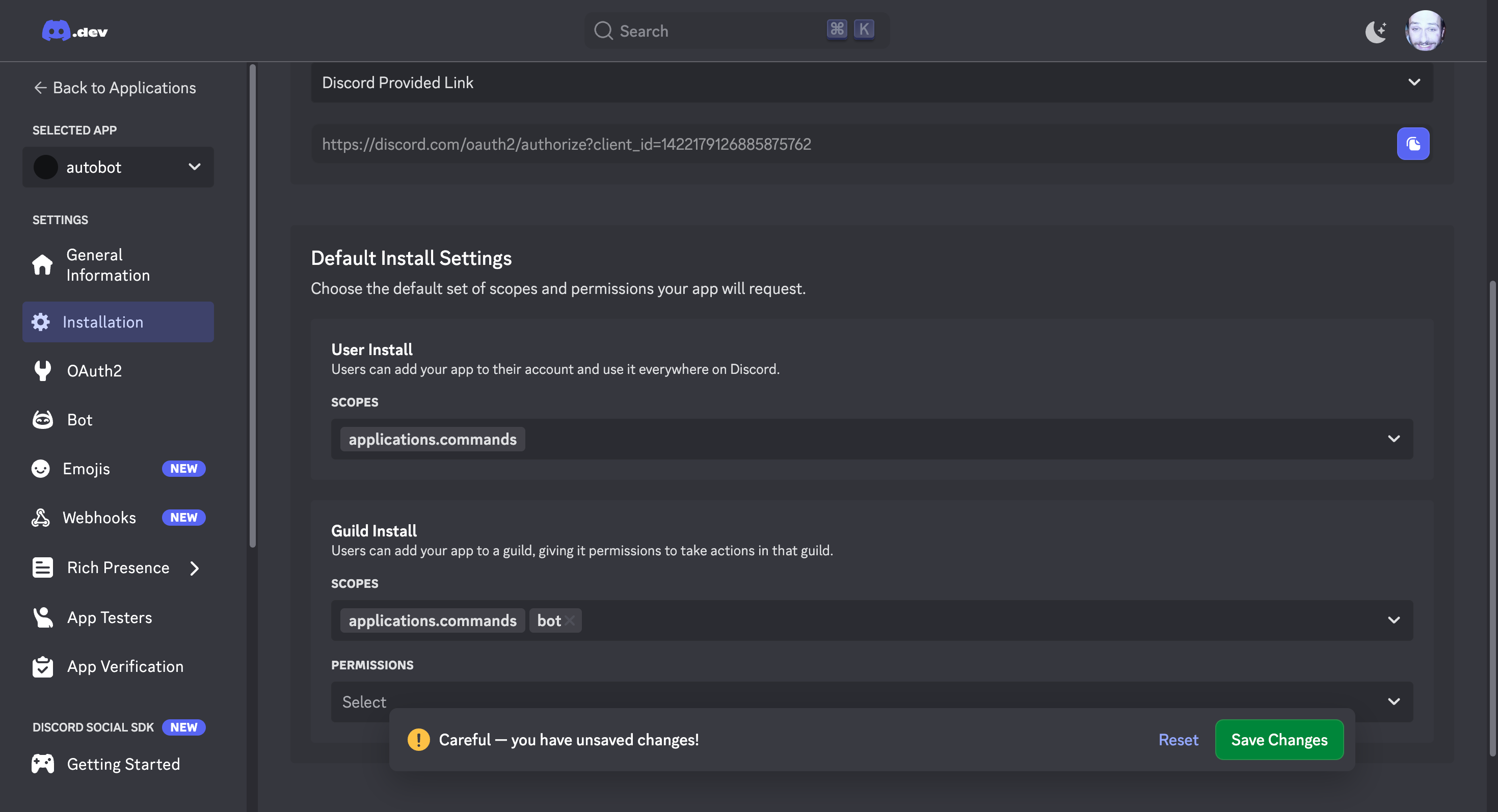
Click on the Guild Install scope dropdown > Select 'bot' from the scope list.
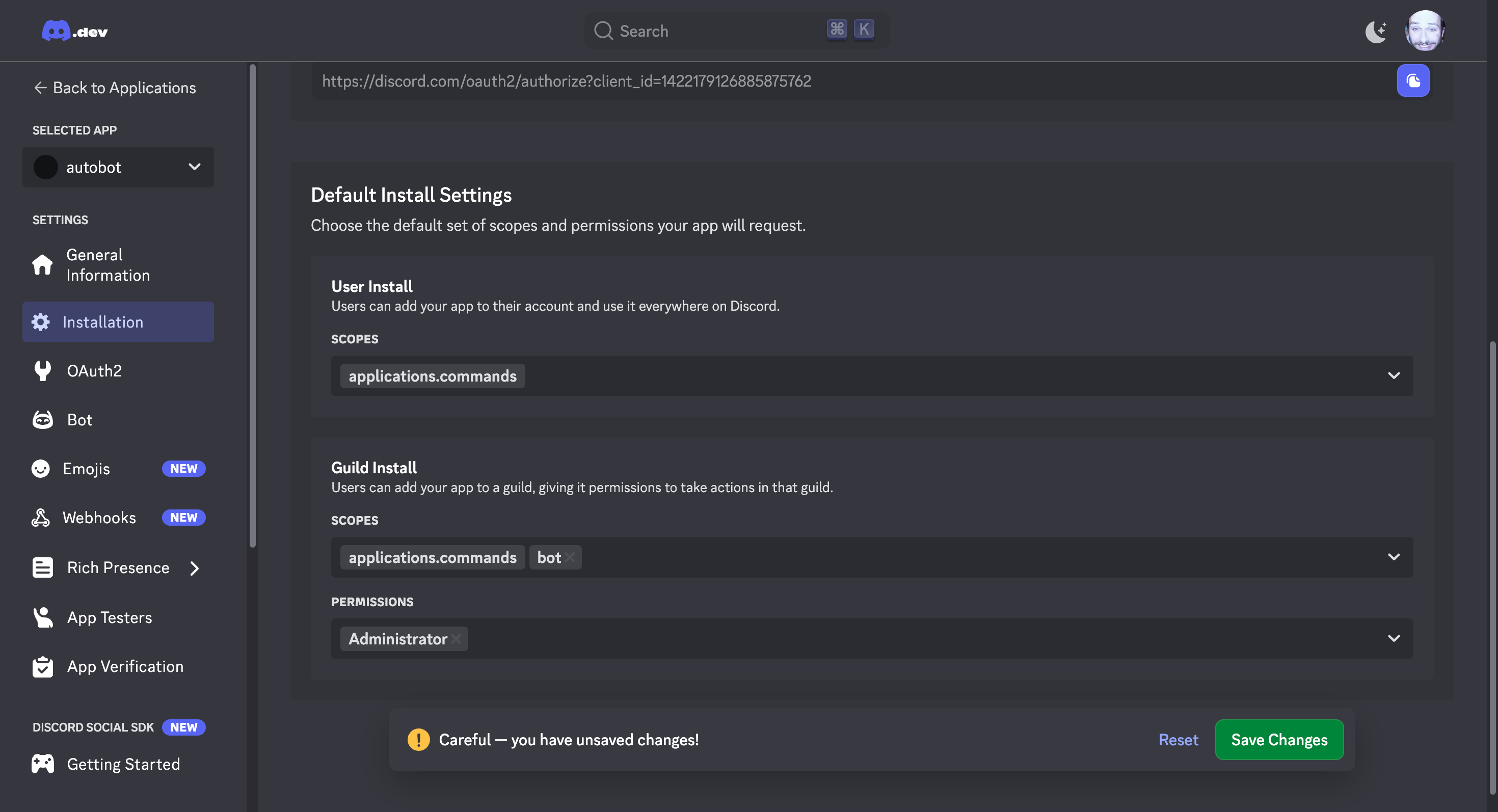
A new permissions section will show up for the Guild Install. Click on the dropdown
and select the appropriate permissions for your bot. You can either give the bot exact
permission set or you can give it 'Administrator' permission. 'Administrator' permission
has complete access to the Discord API. Finally, click 'Save Changes'.
Discord should give you a confirmation at the top of the page.
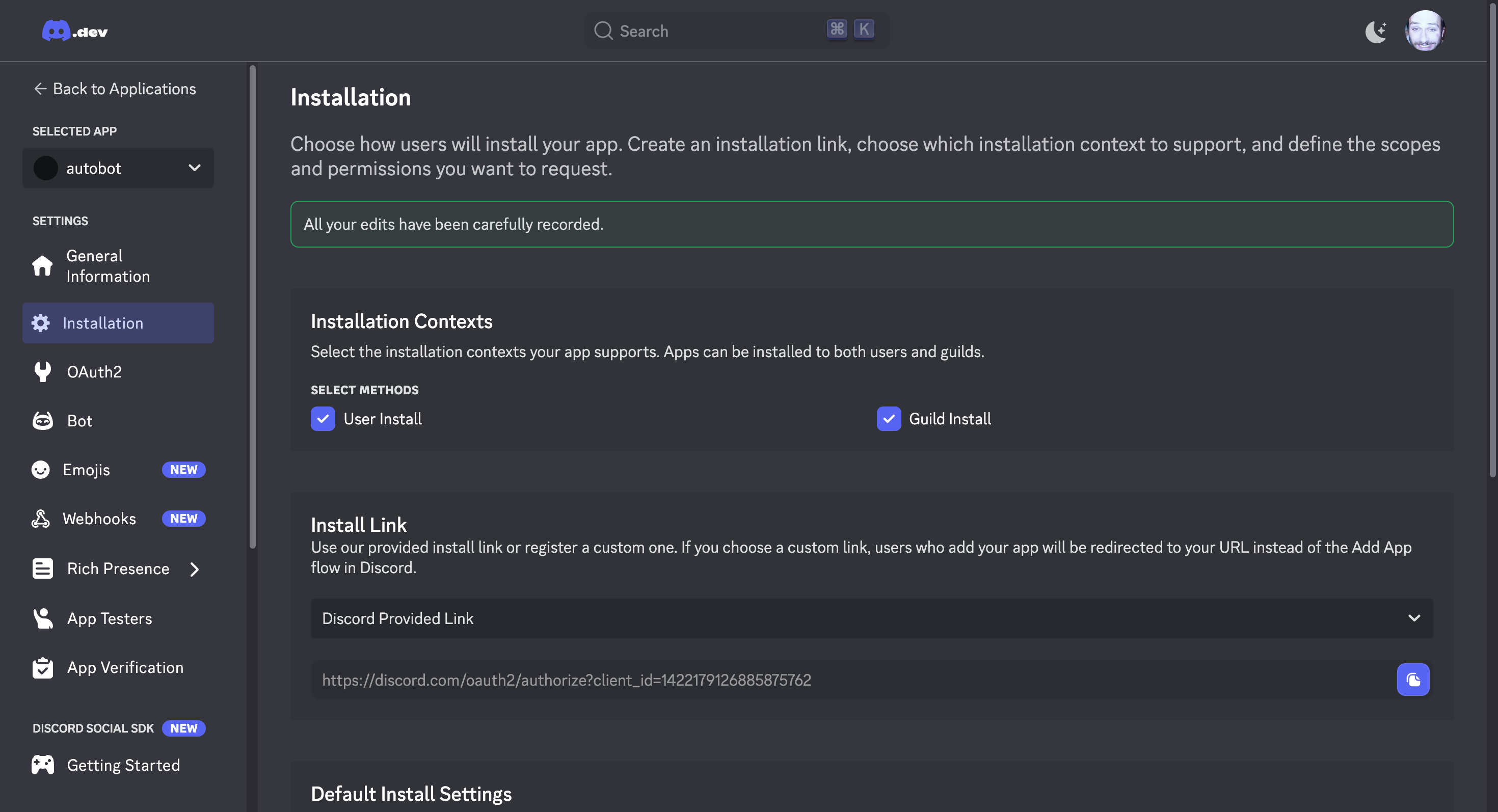
Copy and paste the install link in your browser.
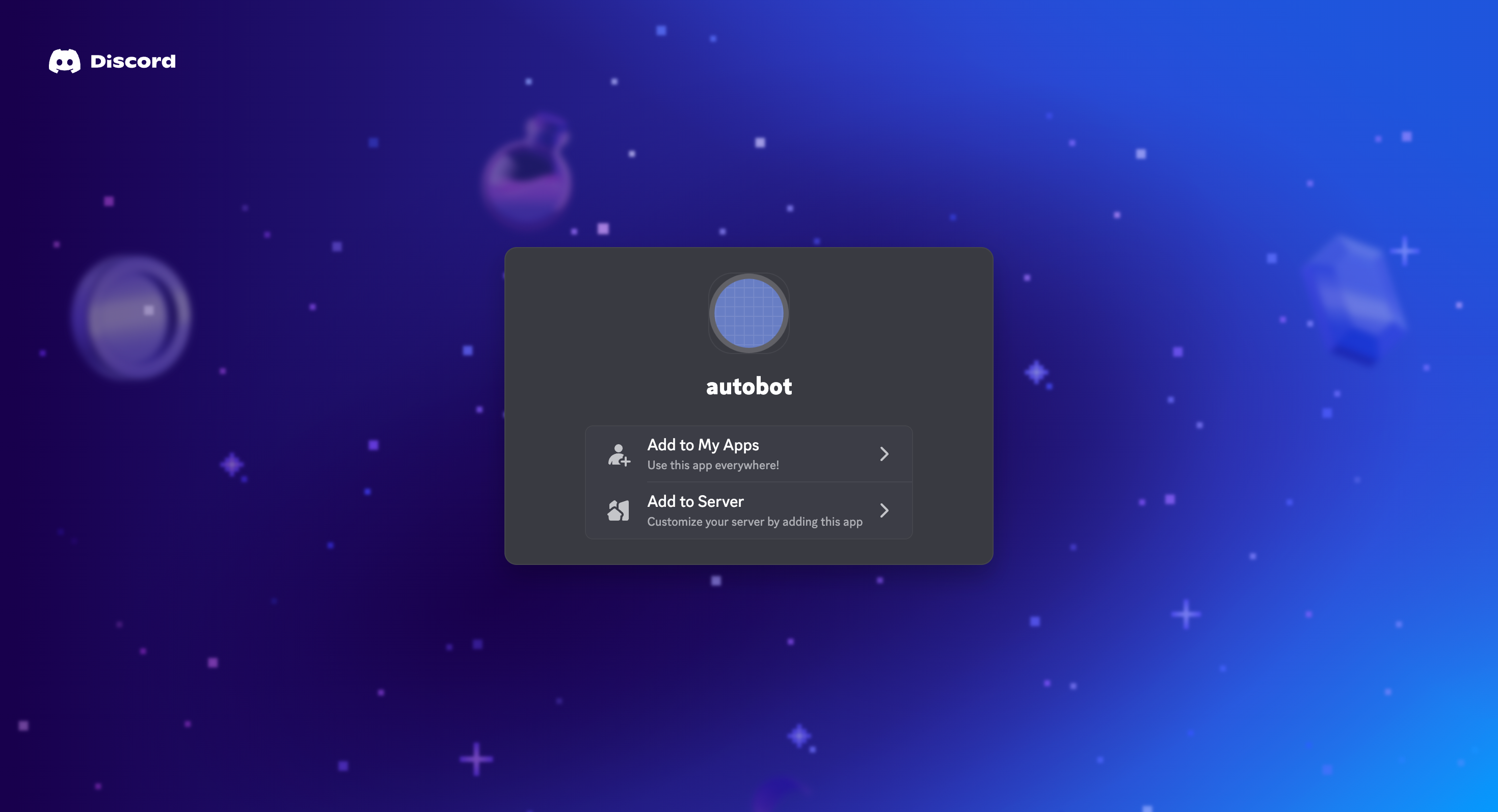
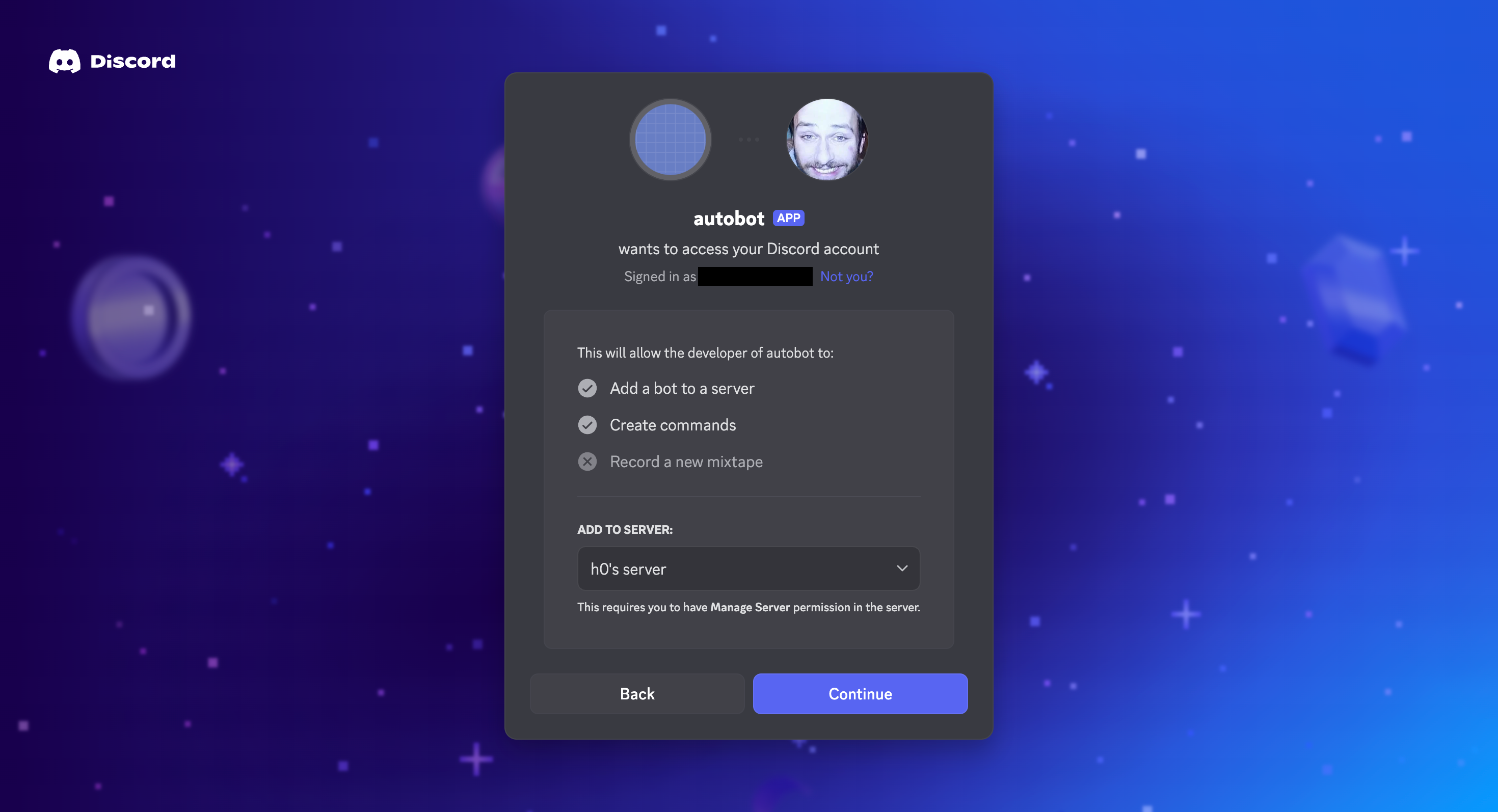
Click on 'Add to Server'. Select your server. Click on 'Continue'.
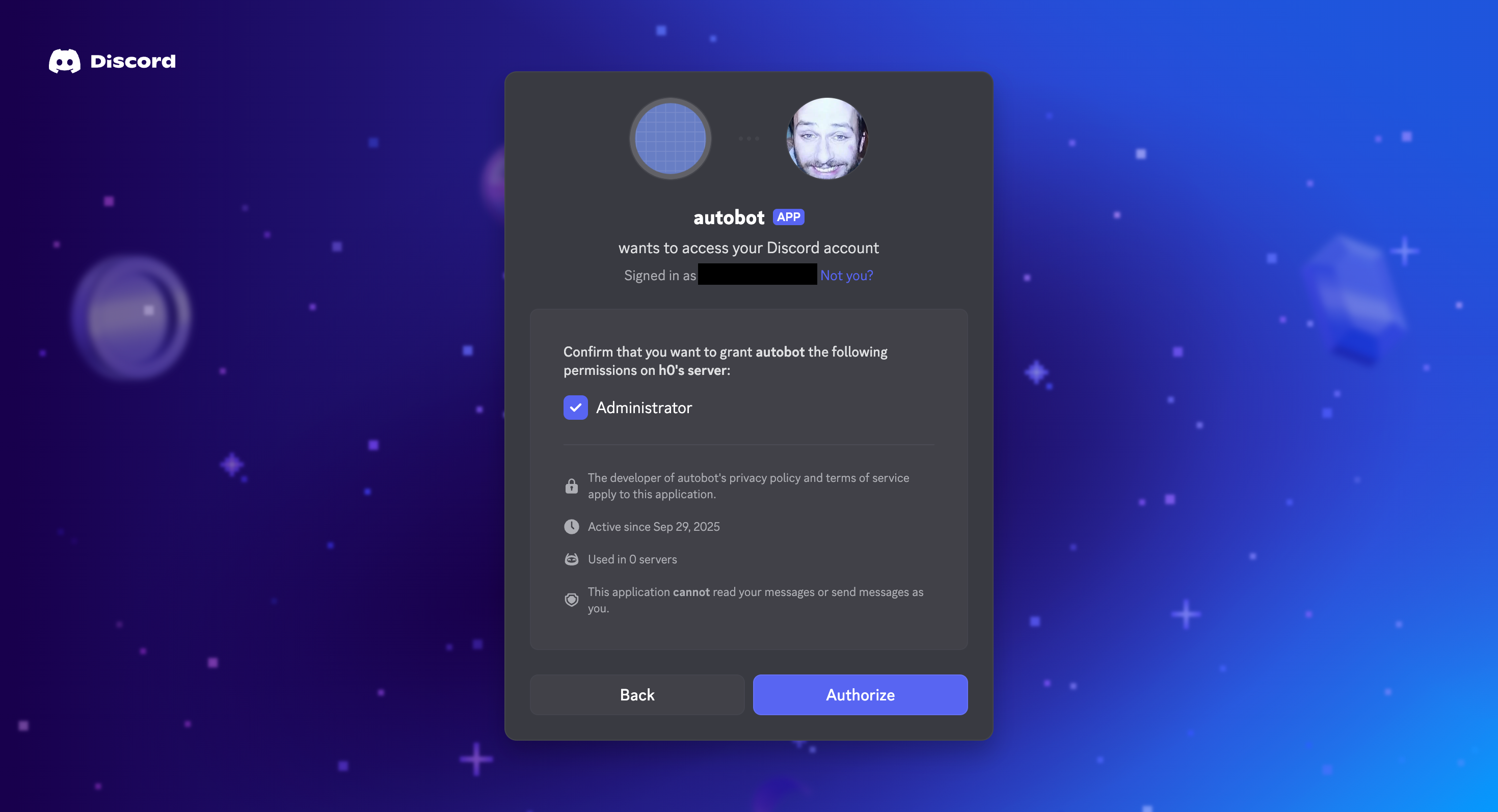
Click on 'Authorize' on the next screen.
Discord should redirect you to a success screen here.
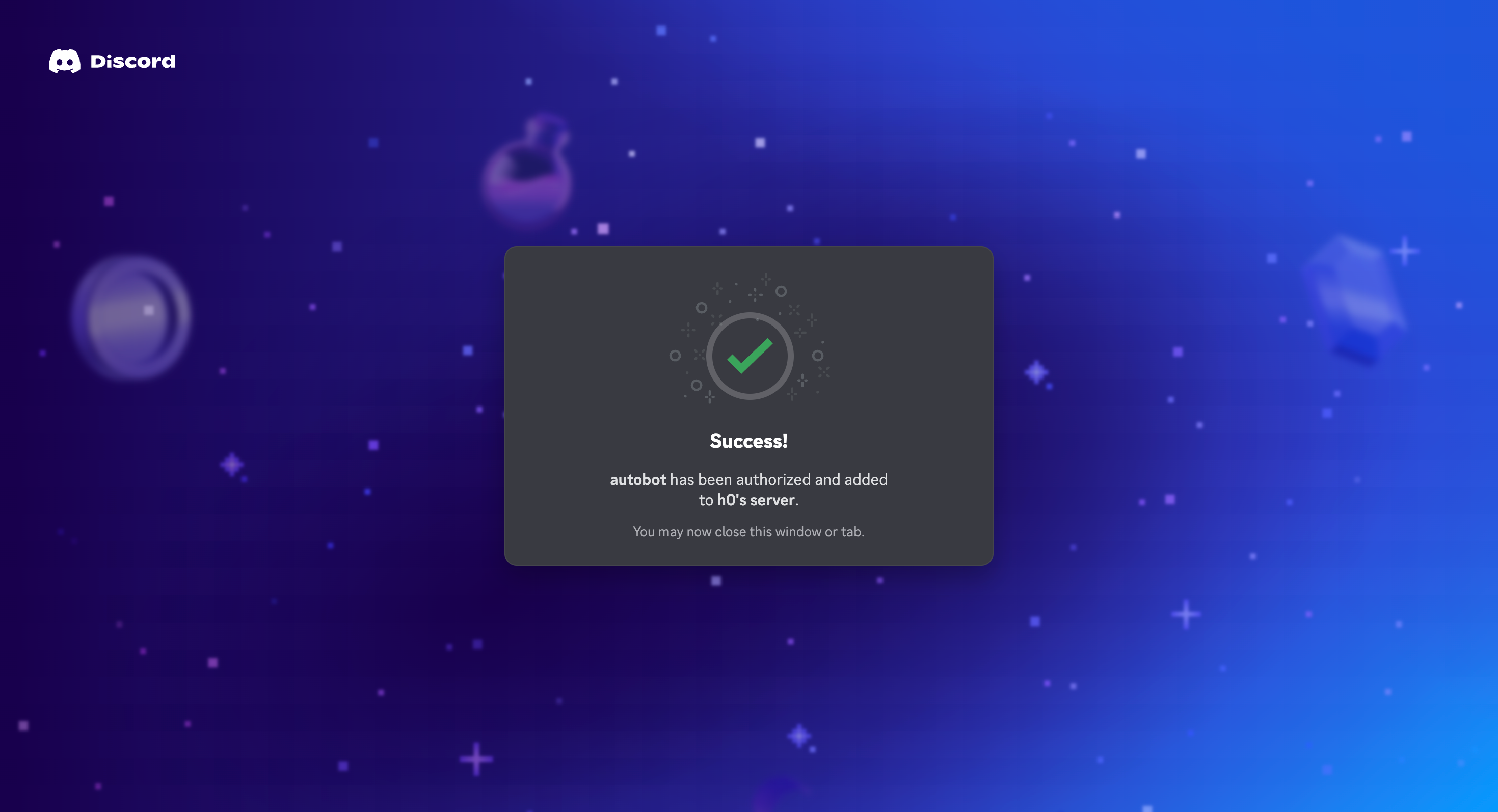
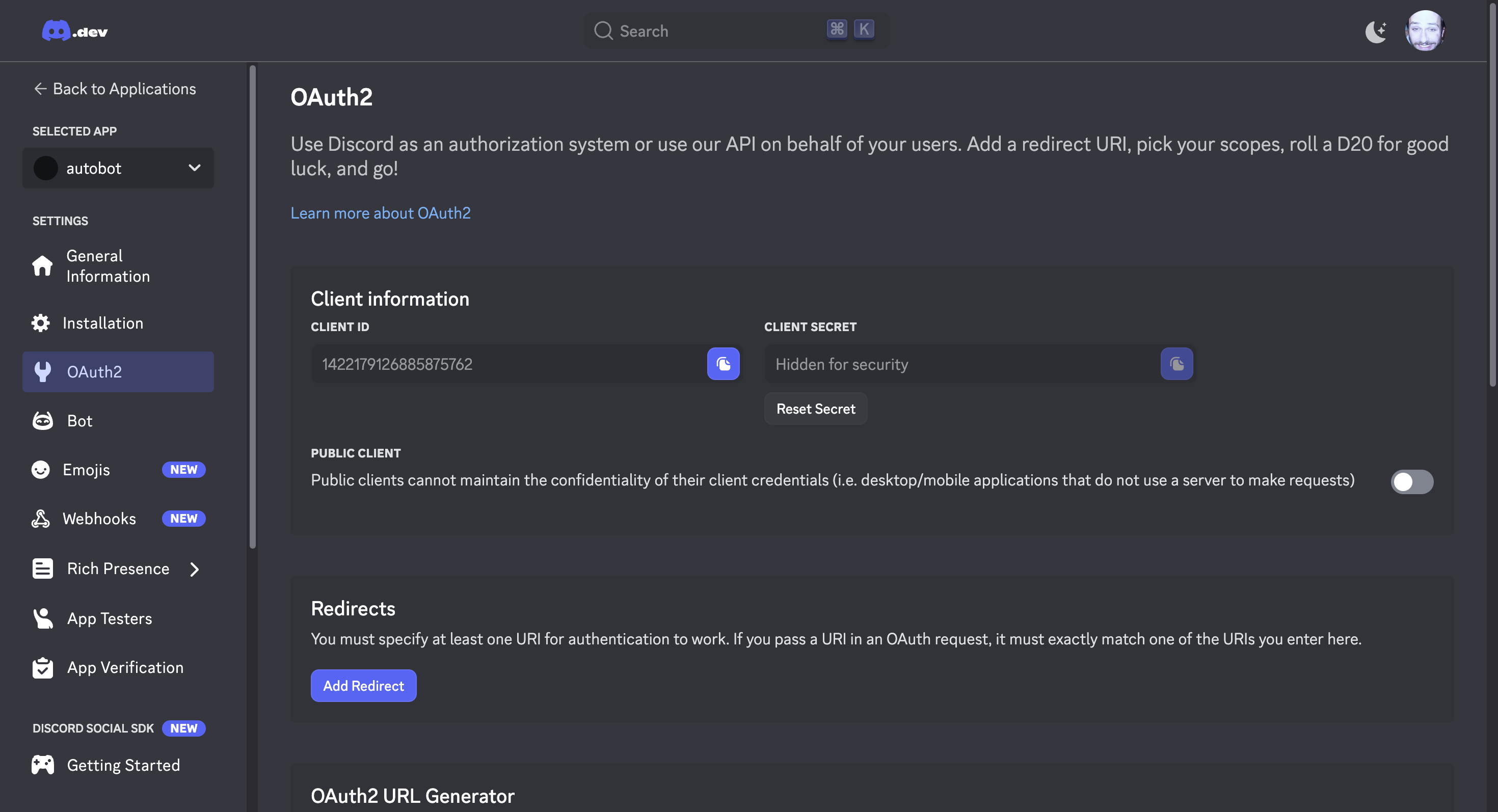
Close the tab and go back to your application settings. Navigate to the
OAuth2 section. Copy the 'Client ID' from this page.
Navigate to the create Discord integration page. Give the integration a name. Paste your client ID.
Navigate back to your Discord application page and click on 'Reset Secret'
under the 'Client Secret' section. This will open a verification popup.
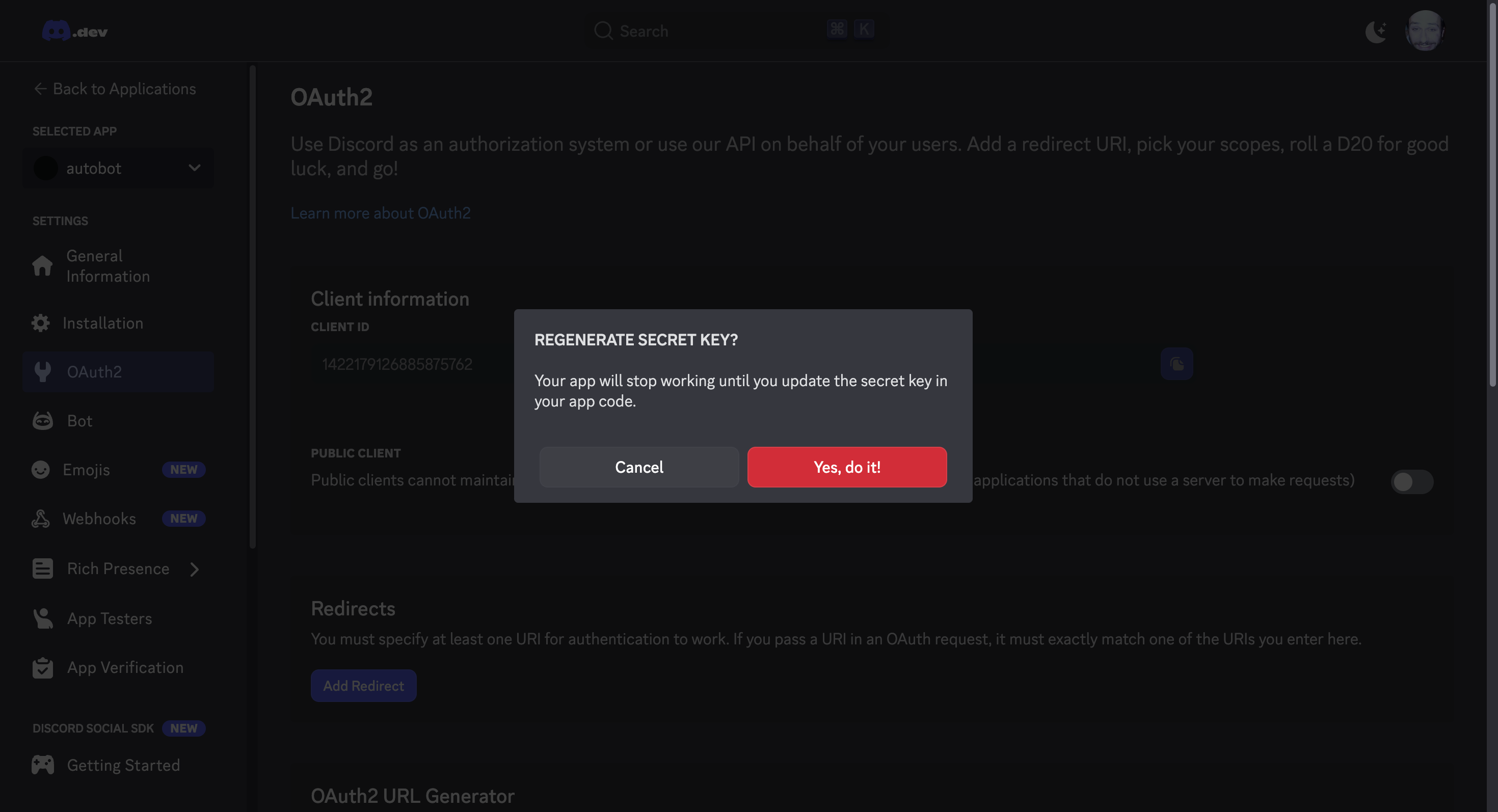
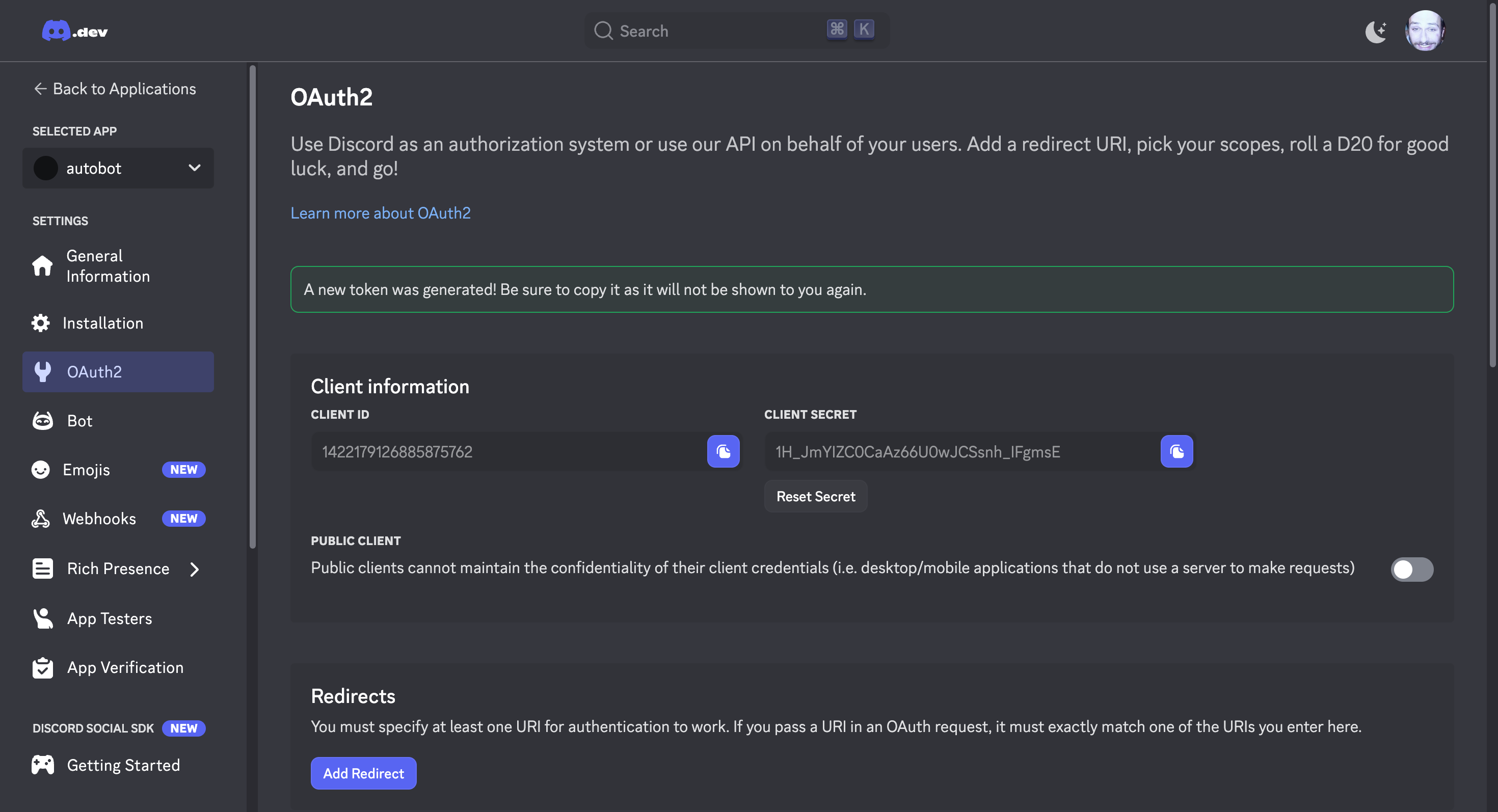
Click on 'Yes, do it!'. Discord may ask you to perform additional steps for verification like password verification. It should show a newly generated secret in the 'Client Secret' section. Please copy it.
The client secret here is sensitive information, do not share this with anyone. We show the token here for simplicity; the token shown here is revoked and is no longer in use.
Navigate back to the 'Create Discord Integration' tab on Helios and paste the token in the Client Secret section.
Navigate back to the Discord applications tab > Go to the Bot section. Generate
and copy the 'Token'. You'll need to follow steps similar to the 'Client Secret' generation.
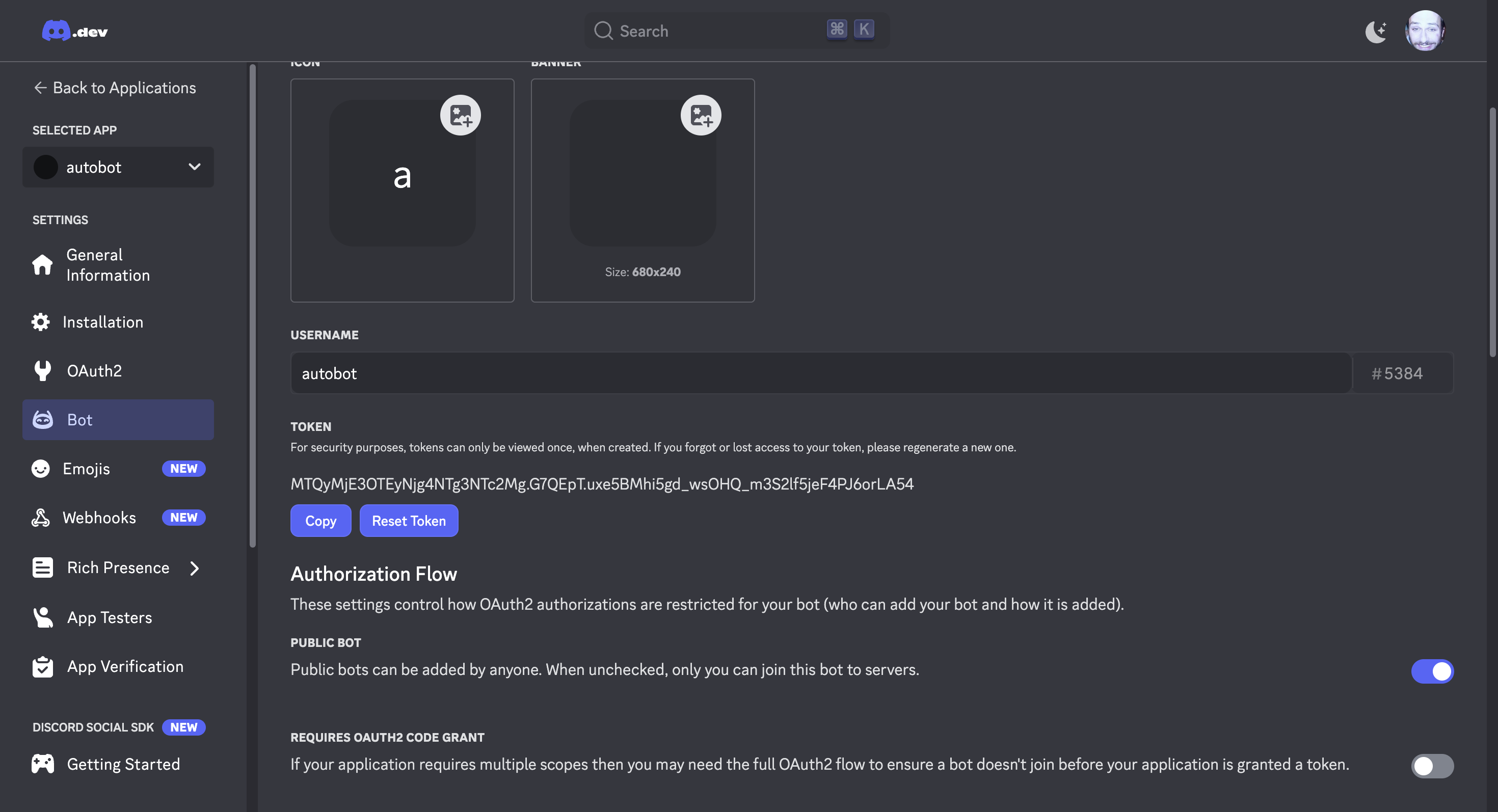
Copy the token and navigate back to the 'Create Discord Integration' tab on Helios. Paste the Bot Token and click on 'Test Connection' to validate.
Click on 'Create Integration'.
Learn more about creating Discord bots in the Discord documentation.
Triggers
Discord does not emit event triggers into Helios. Only GitHub, Slack, and Plain do. Use Discord from chat, or from a workflow started by a schedule, webhook, or manual trigger.
Last updated on
Cloudflare
Connect Cloudflare with an API token or OAuth app to call REST endpoints and receive supported alerts.
Dropbox
The Dropbox integration lets Helios agents work with files, folders, sharing, file requests, Paper docs, and Dropbox teams through the Dropbox API, and run agents automatically when files are added or changed, folders are created, items are deleted, or team members change.